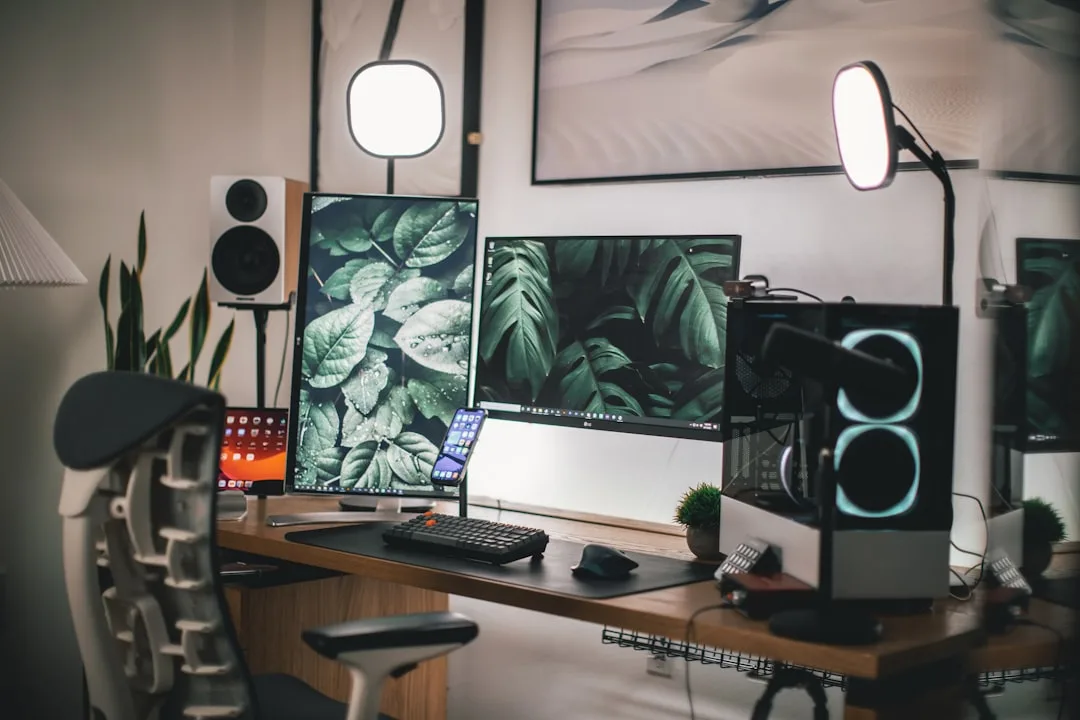
The average dual monitor setup on factory stands consumes over 50 inches of desk width and nearly 15 inches of depth before a keyboard, mouse, or coffee mug enters the picture — and most home office desks are 48 inches wide. That’s not a coincidence. That’s a collision. And it’s why so many home offices that should work, don’t — not because the person chose the wrong monitors, but because nobody sat down and treated this as a design problem before it became a frustration problem.
Quick Answer
The average dual monitor setup on factory stands consumes over 50 inches of desk width and nearly 15 inches of depth before a keyboard, mouse, or coffee mug enters the picture — and most home office desks are 48 inches wide.
Eleven years of working with clients in Chicago studios and 600-square-foot New York apartments taught me that the dual monitor desk is one of the most mismanaged objects in residential interiors. People spend real money on the screens. Then they cram them onto whatever desk they already own, run cables in whatever direction gravity takes them, and wonder why the room feels chaotic even after they’ve cleaned it. This article is about solving that — at the desk level, at the room level, and at the level of how the space actually feels to be inside.
Why Most Dual Monitor Desk Setups Feel Cramped (And What Goes Wrong First)
In This Article
- Why Most Dual Monitor Desk Setups Feel Cramped (And What Goes Wrong First)
- How Much Desk Space Do You Actually Need for Two Screens?
- How to Fit a Dual Monitor on a Small Desk Without Sacrificing the Room’s Look
- The Best Layout Configurations for a Dual Monitor Desk (Ranked by Space Efficiency)
- Desk Dimensions, Shapes, and Materials That Work Hardest in Compact Home Offices
- Lighting, Color, and Proportion: The Design Principles That Make Small Desk Setups Look Intentional
- The Gear Worth Buying (And What You Can Skip) for a Compact Two-Screen Desk
- Room-Level Planning: Fitting the Desk Into the Space, Not Just Fitting the Screens Onto the Desk

Here’s what I tell every client who walks in frustrated by their home office: the problem is almost never your desk width. Width is the measurement people obsess over. The real culprit is depth — or more precisely, the loss of it.
Most residential desks run 24 to 30 inches deep. That sounds like enough until you put two monitors on factory stands, each of which eats 12 to 15 inches of depth before the screen even begins. What’s left for your keyboard? Six inches, sometimes less. That’s not a workspace — that’s a ledge. I had a client in Wicker Park who’d bought what was advertised as a “professional workstation desk” — 55 inches wide, which sounded generous — but it was only 24 inches deep. The moment she added a second monitor on a stand, her keyboard sat flush against the desk edge and her wrists were angled upward all day. The label said workstation. The dimensions said otherwise.
The standard dual monitor setup with two 27-inch displays on factory stands requires approximately 48–52 inches of linear desk width and 12–15 inches of depth just for the stands, before a keyboard, mouse, or any accessories are accounted for. Most off-the-shelf desks marketed as workstations were designed around a single-screen workflow — the “workstation” label refers to the presence of cable grommets and a large surface, not to any actual accommodation for two screens with working clearance.
Then there’s the cable situation. Cable sprawl visually compresses any surface in a way that’s hard to quantify until you actually clear it and see how much desk you didn’t know you had. Mismatched monitor heights compound this further — one screen two inches higher than the other forces your head to tilt across the day, and that physical discomfort registers as visual discomfort too. The whole setup reads as unresolved, because it is.
What goes wrong, in order:
- Factory stands are chosen by manufacturers for stability, not space efficiency — they’re wide at the base and deep for a reason that has nothing to do with your desk
- Cable management is treated as an afterthought rather than a first-pass design decision, which means it never gets done properly
- Monitor height is set by whatever the stand allows, not by the ergonomic ideal (top of screen at or just below eye level)
- Desk selection happens before screen selection, which means the math never gets checked until both items are already in the room
Takeaway: Before you buy anything, measure your desk’s depth — not its width. If it’s under 28 inches, a monitor arm isn’t optional; it’s the only path to a functional setup.
How Much Desk Space Do You Actually Need for Two Screens?
Let me give you actual numbers, because most of what’s out there is vague enough to be useless.
Minimum viable width for two 24-inch displays on their factory stands is 48 inches — and that’s tight, with almost no room for anything beside the monitors. Step up to 27-inch displays and you’re looking at 52+ inches for the stands alone. Switch both monitors to a dual arm, and that minimum drops to 42 inches — which is a meaningful difference. Two 24-inch monitors on arms require as little as 42 inches of desk width versus 52+ inches on native stands, a 10-inch difference that is often the margin between a setup that works and one that does not.
Depth is where people consistently underestimate:
- 24 inches deep: workable only with a monitor arm that gets screens off the desk surface entirely; keyboard zone is tight
- 30 inches deep: comfortable — gives you the 8–10 inch keyboard zone in front of elevated screens plus a small active work area
- 32 inches deep: generous; allows a writing surface alongside the keyboard without feeling crowded
That 8–10 inch zone in front of the screen plane is what I call the golden zone — it’s where your hands actually live during the workday. Lose it, and you’re not just uncomfortable; you’re making the entire setup dysfunctional regardless of how good the monitors are.
Bezel width matters more than most people realize. Ultraslim bezels — 3 to 5mm — on modern monitors can save 1 to 2 cumulative inches of total width compared to older models with 15 to 20mm bezels. Not dramatic, but in a 48-inch-wide desk scenario, every inch has weight.
Corner and L-shaped desks change the math entirely. The angled return leg can absorb one monitor without consuming any primary desk real estate — your main surface stays clear for active work, and the secondary screen sits at a natural angle in your peripheral view. This is the configuration I recommend most often to clients working in rooms under 120 square feet, because it’s the only geometry that genuinely adds functional surface area without adding square footage.
Takeaway: Measure your current desk depth before width. If you’re under 28 inches, a monitor arm is the first purchase — not the last.
How to Fit a Dual Monitor on a Small Desk Without Sacrificing the Room’s Look
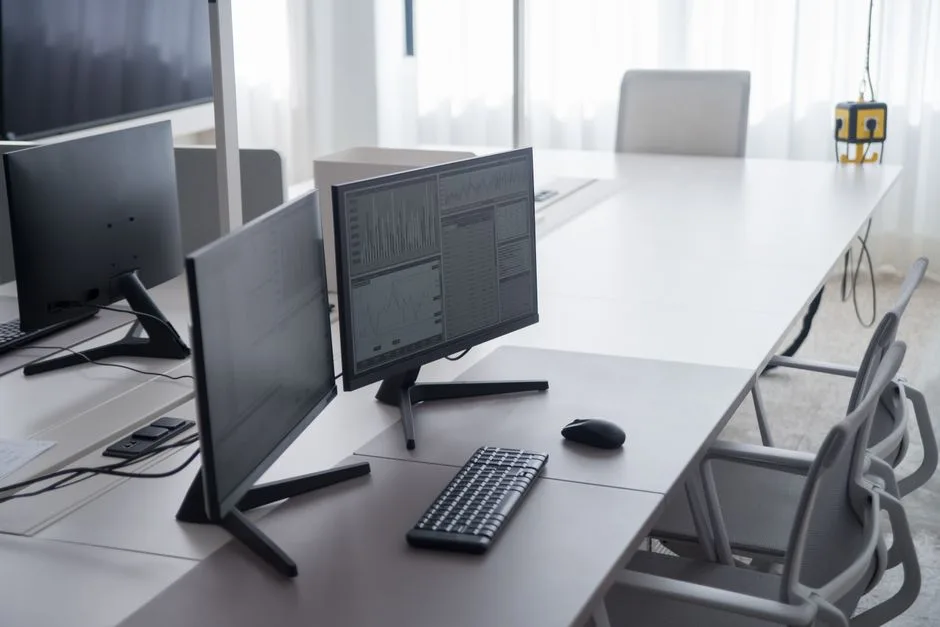
This is where the purely technical advice runs out and the actual design work begins. Getting two screens onto a small desk is solvable with a monitor arm and a tape measure. Getting two screens onto a small desk in a way that doesn’t make the room feel like a server closet — that requires a different kind of thinking.
The single highest-impact move I’ve made in client spaces is mounting to the wall instead of the desk. A wall-mounted dual arm eliminates desk load entirely and reads — from the doorway — as intentional design rather than improvisation. When the monitors are floating, the desk beneath them reads as a surface, not a storage problem. It’s a completely different visual experience, and the effect on how the room feels is disproportionate to the effort involved.
Beyond the arm, the design principles that actually work here are these:
- Match monitor frame finish to existing room hardware. Matte black monitors in a room with brushed nickel fixtures create friction that your eye registers even if your brain doesn’t name it. Pick a finish — matte black, brushed silver, or white — and hold to it across monitors, arm, and desk accessories.
- Cable management is a design decision, not a cleanup task. A single braided cable sleeve in a neutral tone — black or warm gray — pulled from monitor to desk makes any setup look more considered. I’ve seen $3,000 desks look cheap because of loose white charging cables. I’ve seen $400 desks look sharp because someone spent $12 on cable sleeves.
- Limit the desk surface to two tones maximum. This is what I call the monochrome lock principle — and it’s probably the most underused idea in home office design. When the surface reads as two tones (say, oak wood and matte black accessories), the eye organizes the scene as curated. Add a third or fourth color — a teal water bottle, a red notebook, a silver pen cup — and the brain registers disorder within about half a second. Keep it to two. Variations in texture are fine; color discipline is what matters.
- A floating shelf above the desk — not a hutch, just a single open shelf — replaces the function of a monitor riser and adds storage without a single inch of desk surface touched. I’ve done this in three client apartments and the before-and-after difference is unreasonable given the cost.
Vertical storage flanking the desk — a slim pegboard panel, a narrow wall shelf — moves accessories off the surface entirely and lets them participate in the room’s design language instead of cluttering the work zone.
Takeaway: Do the cable management first, before any other design change. It’s the lowest-cost, highest-visibility improvement available to any desk setup.
The Best Layout Configurations for a Dual Monitor Desk (Ranked by Space Efficiency)

The layout question should be driven by your room’s dominant axis — the direction the longest wall faces, where the windows are, where you enter the room — not just by desk width. I’ve seen ergonomically perfect side-by-side setups placed directly in front of a south-facing window, making both screens unusable by 10 a.m. Layout and room geometry are the same decision.
Here’s how the configurations rank, from most to least space-efficient:
- Side-by-side flat (0° angle): Best for desks 48 inches or wider where the desk faces a wall. Maximum screen real estate, simplest cable path, easiest to calibrate for color-matched work. No horizontal space savings, but the cleanest visual result.
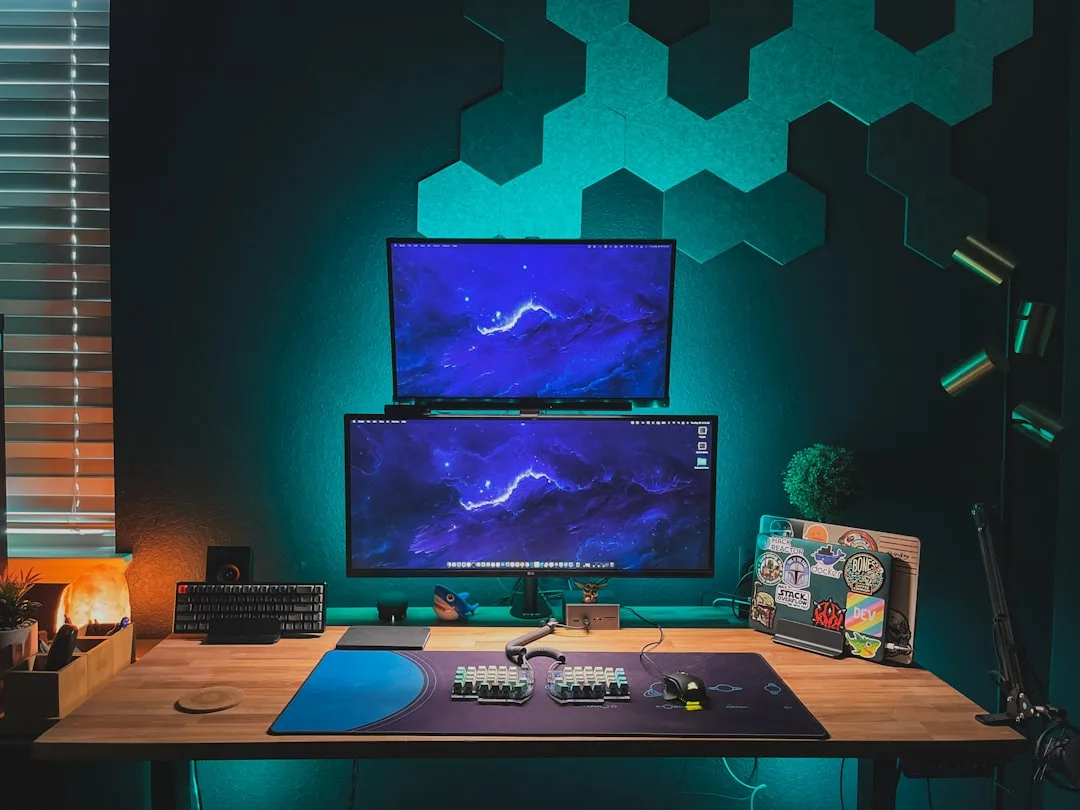
- Side-by-side angled (15–30° V-shape): A 15-degree angled dual layout reduces the total linear footprint from approximately 48 inches to 42–44 inches while maintaining full usability of both screens — equivalent to gaining nearly half a foot of desk width without buying a new desk. Better for desks that float in the room, where you’re sometimes viewed from multiple angles.
- Primary landscape + secondary portrait (vertical rotation): Saves 6 to 8 inches of horizontal width. Genuinely excellent for writing, research, or coding workflows where the secondary screen holds reference material, a terminal, or a long document. Underused and underrated.
- Stacked vertical (one above one): Requires only the horizontal width of a single monitor. Works in narrow galley-style offices where horizontal space is the binding constraint. The ergonomic tradeoff — neck angle for the upper screen — is real and manageable if the upper screen is used for secondary tasks rather than primary work.
- Corner/L-shape split: One monitor on the primary surface, one on the return. The most ergonomically demanding because it requires turning your body for the secondary screen — but it maximizes total desk utility in small rooms and keeps the primary surface completely clear for the main workflow.
Takeaway: If your desk is between 42 and 48 inches wide, try a 15-degree V-angle before concluding your desk is too small. You may recover enough width to make the setup workable without buying anything.
Desk Dimensions, Shapes, and Materials That Work Hardest in Compact Home Offices
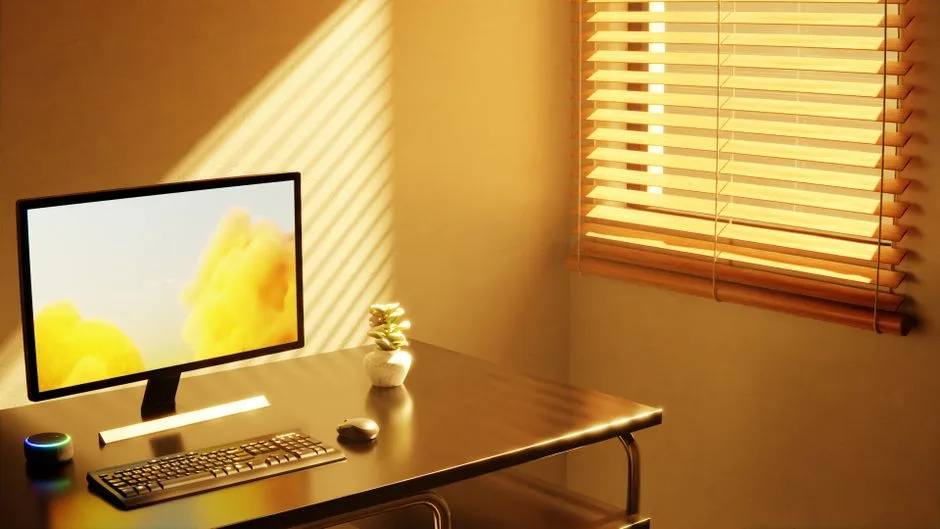
Most articles about dual monitor setups treat the desk as a given — work with what you have. That’s practical advice for someone who can’t replace their desk. But if you’re shopping, the desk is where the entire problem gets solved or created, and most people make this decision with the wrong criteria.
The ideal desk for a compact dual-screen setup is 55 to 60 inches wide and 30 inches deep. That sounds specific because it is. Below 55 inches with two screens on arms, you’re managing; above 60 inches in a small room, the desk starts to dominate the space in ways that compress the room instead of containing the desk. Thirty inches of depth gives you the keyboard zone without pushing the screens so far from your face that you’re leaning in.
Floating wall-mounted desks deserve serious consideration in rooms under 120 square feet. No legs means no visual interruption of the floor plane — and a visible floor plane is one of the most reliable tools in small-space design for creating a sense of openness. A wall-mounted floating desk creates the visual impression of 15 to 20 percent more floor space compared to a legged desk of identical dimensions, a principle used consistently in Scandinavian and Japanese residential design traditions where small footprint rooms are the norm rather than the exception.
On materials:
- Light wood tones — oak, ash, birch — are the most forgiving surfaces in small home offices because they read as warm and intentional without adding visual weight
- Glass and acrylic surfaces reflect light well but fingerprint constantly and require daily maintenance to look clean; beautiful in theory, frustrating in practice
- Avoid desks with hutches or built-in overhead shelving — they create a visual enclosure that amplifies the sense of being boxed in, which is exactly the opposite of what a small room needs
- A recessed cable management channel along the rear desk edge is worth prioritizing over almost any other feature when comparing desks at similar price points — retrofitting cable management is always messier and less effective than having it built in
Takeaway: If you’re buying a new desk, prioritize 30 inches of depth over width. Depth is what creates usable workspace — width just determines how many things you can put at the back of it.
Lighting, Color, and Proportion: The Design Principles That Make Small Desk Setups Look Intentional
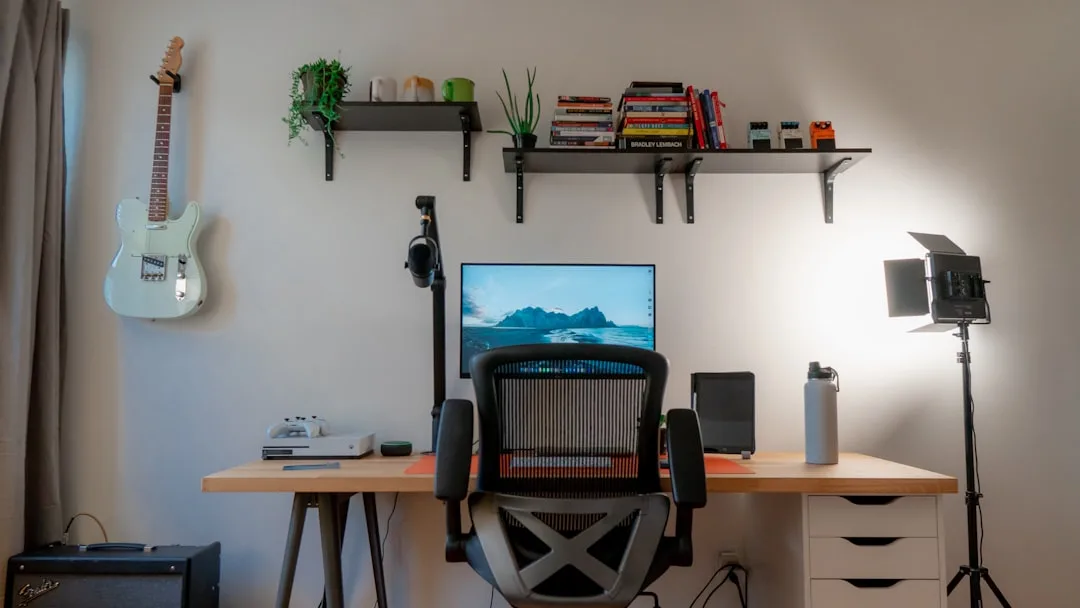
Nobody writing about dual monitor setups is writing about this, which is exactly why I want to spend real time on it.
Bias lighting — an LED strip mounted on the wall directly behind the monitors — is the single most underused design tool in home office setups, and it does two completely separate things simultaneously. It reduces the contrast between the bright screen and the dark wall behind it, which measurably reduces eye strain during extended sessions. And it creates a luminous halo behind the screens that reads as depth — the desk stops feeling like a flat surface pushed against a wall and starts feeling like a designed zone with dimensionality. Use 6500K for neutral daylight, or 4000K if the room reads warm. Do not use warm white; it muddies the screen colors and creates an unflattering cast on everything nearby.
A desk lamp with an articulated arm and a narrow base reclaims 4 to 6 inches of usable surface compared to a wide-base task lamp. This sounds minor. It is not minor on a 48-inch desk.
Color discipline at the room level matters as much as at the desk level. Painting or wallpapering the wall directly behind the desk in a contrasting or deeper tone — even just one shade darker than the adjacent walls — creates an architectural distinction that makes the desk zone feel intentional rather than incidental. I’ve used this in three studio apartments where the client needed a home office but didn’t want the apartment to feel like a home office. The accent wall technique contains the workspace visually without enclosing it physically. It’s one of those moves that costs almost nothing and reads as deliberate design.
Monitor bezels in the same tone as the wall behind them dissolve the hardware into the space rather than competing with it. Black monitors against a dark charcoal accent wall nearly disappear when the screens are off — which matters enormously in studio apartments where the desk and the living area share the same sightlines.
One proportional rule I return to constantly: the total visual mass of the desk and screens should not exceed one-third of the visible wall when viewed from the room’s main entry point. If the desk is eating more than that, the room is working for the desk instead of the desk working for the room.
Takeaway: Before you spend money on anything, put an LED bias light strip behind your monitors. It’s a $15 to $30 change that makes the setup look designed and reduces eye fatigue — two outcomes from one decision.
The Gear Worth Buying (And What You Can Skip) for a Compact Two-Screen Desk
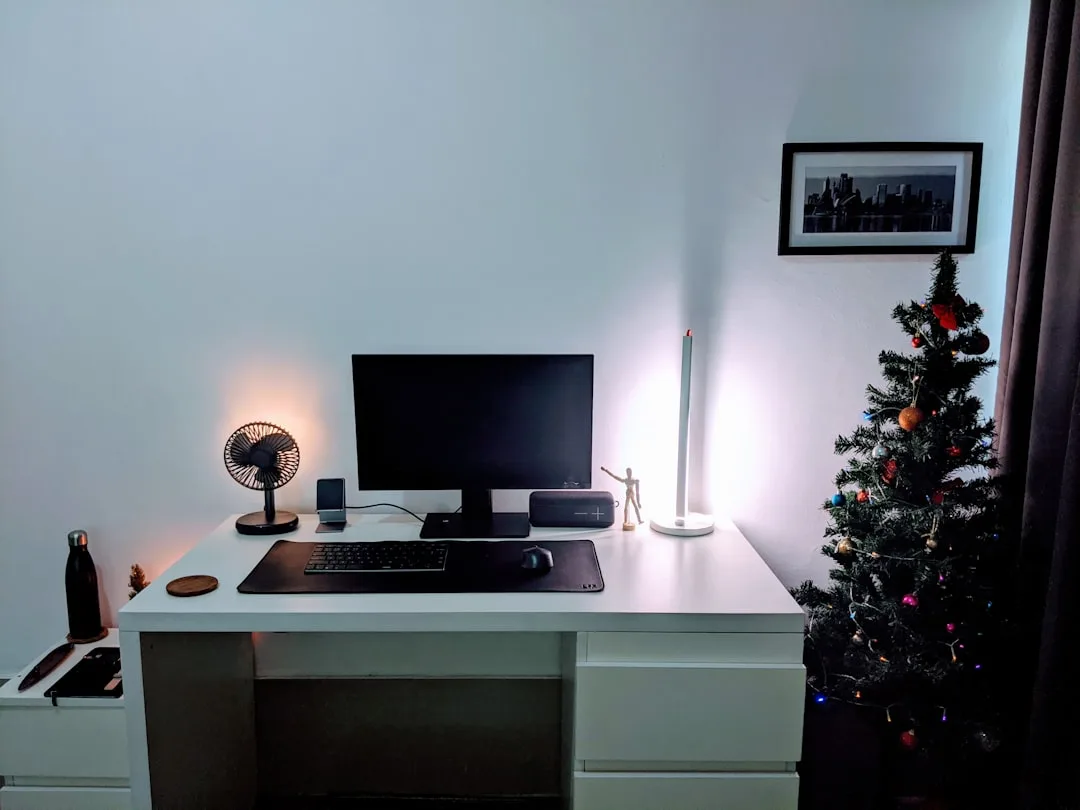
I want to be direct here, because most of what gets recommended in home office content is either obvious or genuinely not worth the money.
Worth buying:
- A dual monitor arm rated for your exact screen weights. This is the single highest-impact purchase available for a compact two-screen desk. A dual arm replaces two monitor stands that each occupy a footprint of approximately 8×8 inches — reclaiming up to 128 square inches, nearly a full square foot of desk surface, in a single purchase. Buy from a brand that publishes actual weight ratings and VESA compatibility specs. Ergotron and Fully are the two I’ve seen hold up over years of actual use.
- A horizontal cable management spine or under-desk cable tray. Not glamorous. Transformative. The visual quality of any setup rises by an unreasonable amount when the cables are gathered and directed rather than scattered.
- A 65% or tenkeyless keyboard. Eliminating the number pad reclaims 3 to 4 inches of horizontal desk width — that’s not nothing. A low-profile mechanical or membrane keyboard also keeps the desk plane visually flatter and saves 8 to 12mm of vertical profile compared to high-travel keyboards. Both matter.
Skip:
- Monitor risers made of wood blocks, books, or decorative objects. They solve the ergonomic problem but create a visual one. If you need screen height, use an arm that provides it cleanly.
- Elaborate docking stations placed on the desk surface. Mount them under the desk on a cable clip shelf. The ports are accessible; the surface stays clear. Every docking station I’ve ever seen sitting on a desk eventually becomes a landing pad for cables, pens, and receipts.
- Full-surface desk pads. Counter-intuitive, I know — desk pads are everywhere right now. But on a small desk, a pad that covers the entire surface eliminates the visual contrast between the workspace material and the desk material. That contrast is part of what makes the setup feel curated. A smaller, zoned pad works better. Full coverage on a small desk makes the whole thing look smaller.
Takeaway: Buy the monitor arm first. Everything else on this list is secondary — the arm is the one purchase that changes the geometry of the entire setup.
Room-Level Planning: Fitting the Desk Into the Space, Not Just Fitting the Screens Onto the Desk
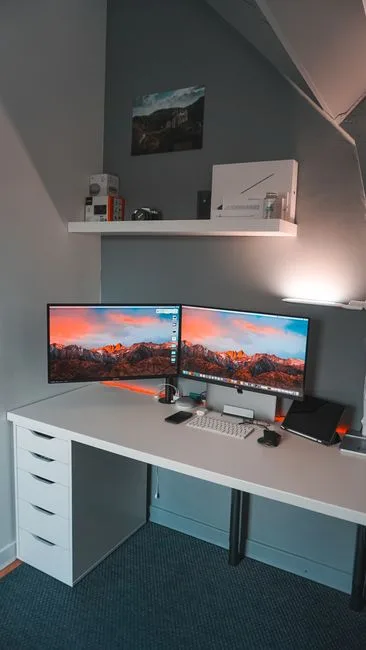
This is where most people stop reading. It’s also where most mistakes actually happen.
The desk position determines more than the desk. Where you place the desk relative to your room’s windows determines glare, which determines whether you face the wall or the room, which determines the traffic flow through the space, which determines whether the office feels integrated into the home or isolated from it. These are all connected decisions, and most people make them sequentially — desk position, then monitor placement, then cable routing — when they should be made simultaneously.
The primary monitor should face away from the room’s main light source. In practice, this usually means the desk faces a wall perpendicular to the windows, with light coming from the side rather than behind or in front of the screens. This placement also tends to position the back of the desk against the wall — which is the single most cable-friendly configuration and the easiest to keep clean.
Interior design guidelines for home offices recommend a minimum room allocation of 50 to 70 square feet for a functional single-person workspace. In rooms below that threshold — and most rooms used as home offices in apartments fall below it — every desk placement decision has a measurable impact on the perceived livability of the entire room, not just the workspace itself.
Allow 36 inches of clearance behind the desk chair for comfortable egress. This is the standard used in interior design for home office planning, derived from accessibility guidelines. In a small room, that 36 inches is often the constraint that determines whether the desk can go against one wall or another.
Corner placement almost always yields more functional desk width than flat-wall placement in the same room. The geometry works in your favor — the corner return absorbs one monitor and keeps the primary surface open, and the desk itself takes up less floor space in the room’s center.
In rooms where the workspace and living space share the same sightlines — studio apartments, open-plan rooms, shared bedrooms — the desk should share the visual language of the surrounding furniture. A white IKEA desk sitting beside a mid-century walnut sofa is a design collision that makes the room feel unresolved even after everything is clean. The desk doesn’t need to match the room’s other furniture exactly. It needs to belong to the same material and tonal conversation. Get that right, and the workspace recedes when not in use rather than dominating the room from the corner.
The away-facing setup — positioning screens so they face away from the room’s seating area — is particularly effective in small apartments. When you’re not working, you see the back of the monitors, not the screens. The workspace becomes background rather than foreground. It’s a simple orientation shift that changes the psychological experience of the room entirely.
Takeaway: Before placing your desk, stand in the doorway and look at where it will sit. If the first thing you see from the entry point is a tangle of cables and a monitor back, move the desk. The room-level view is the one that matters most.
Frequently Asked Questions
How much desk space do you need for a dual monitor setup?
For two 24-inch monitors on factory stands, you need a minimum of 48 inches of desk width and 28 to 30 inches of depth to maintain a workable keyboard zone in front of the screens. With a dual monitor arm, you can get that width requirement down to 42 inches and reclaim 12 to 15 inches of depth that the stands would otherwise consume. The depth figure is more critical than the width — a shallow desk creates ergonomic and visual problems that wider desks can’t fix.
How to fit a dual monitor on a small desk?
The sequence that works: first, install a dual monitor arm to eliminate stand footprints and reclaim depth. Second, do cable management before anything else — a braided cable sleeve or under-desk tray takes 20 minutes and makes the setup look completely different. Third, apply the monochrome lock principle — limit the desk surface to two tones. Fourth, add bias lighting behind the monitors if the desk is against a wall. Doing these four things in order will transform a 48-inch desk from a cramped pile of hardware into a workspace that reads as designed.
What is the best layout for a dual monitor desk?
For most users in rooms under 150 square feet, the best layout is a 15 to 30-degree V-shaped side-by-side arrangement. It reduces the total horizontal footprint by 4 to 6 inches compared to a flat side-by-side layout while keeping both screens fully usable and reducing the neck rotation required to shift attention between screens. For workflow-specific setups — writing, coding, research — a primary landscape plus secondary portrait arrangement saves even more horizontal space and is genuinely underrated. The worst default choice for small rooms is flat side-by-side on factory stands with no arm, which maximizes both width and depth consumption simultaneously.
What desk size works best for two monitors in a small room?
55 to 60 inches wide and 30 inches deep is the range I’d recommend if you’re buying. Below 55 inches with two screens is manageable but requires an arm — not optional. A floating wall-mounted desk in this size range is the best possible choice for rooms under 120 square feet because it eliminates the visual weight of desk legs and keeps the floor plane clear, which is one of the most reliable tools in small-space design for creating a sense of openness. Avoid desks with overhead hutches regardless of size — they amplify enclosure rather than containing it.
Here’s your one action for today: get a tape measure and check your desk depth right now — not the width, the depth. Measure from the front edge to the wall or back edge. If it’s under 28 inches, the dual monitor arm is your first purchase, not a maybe. If it’s 28 to 30 inches, you have options. If you’re at 30 inches or more, the layout and cable management decisions matter more than any gear upgrade you could make. Start with that number, and every other decision in this article becomes easier to sequence.
How much desk space do you need for a dual monitor setup?
For two 24-inch monitors on factory stands, you need a minimum of 48 inches of desk width and 28 to 30 inches of depth to maintain a workable keyboard zone in front of the screens. With a dual monitor arm, you can get that width requirement down to 42 inches and reclaim 12 to 15 inches of depth that the stands would otherwise consume. The depth figure is more critical than the width — a shallow desk creates ergonomic and visual problems that wider desks can’t fix.
How to fit a dual monitor on a small desk?
The sequence that works: first, install a dual monitor arm to eliminate stand footprints and reclaim depth. Second, do cable management before anything else — a braided cable sleeve or under-desk tray takes 20 minutes and makes the setup look completely different. Third, apply the monochrome lock principle — limit the desk surface to two tones. Fourth, add bias lighting behind the monitors if the desk is against a wall. Doing these four things in order will transform a 48-inch desk from a cramped pile of hardware into a workspace that reads as designed.
What is the best layout for a dual monitor desk?
For most users in rooms under 150 square feet, the best layout is a 15 to 30-degree V-shaped side-by-side arrangement. It reduces the total horizontal footprint by 4 to 6 inches compared to a flat side-by-side layout while keeping both screens fully usable and reducing the neck rotation required to shift attention between screens. For workflow-specific setups — writing, coding, research — a primary landscape plus secondary portrait arrangement saves even more horizontal space and is genuinely underrated. The worst default choice for small rooms is flat side-by-side on factory stands with no arm, which maximizes both width and depth consumption simultaneously.
What desk size works best for two monitors in a small room?
55 to 60 inches wide and 30 inches deep is the range I’d recommend if you’re buying. Below 55 inches with two screens is manageable but requires an arm — not optional. A floating wall-mounted desk in this size range is the best possible choice for rooms under 120 square feet because it eliminates the visual weight of desk legs and keeps the floor plane clear, which is one of the most reliable tools in small-space design for creating a sense of openness. Avoid desks with overhead hutches regardless of size — they amplify enclosure rather than containing it.